Git For Beginners: Basics And Essential Commands
A beginner-friendly guide to understanding Git and why developers rely on it

Why do developers even need Git?
Imagine you are working on a project.
You create a file, edit it, break something, fix it again… and suddenly you wish:
👉 “I want my old working version back.” 👉 “I want to see what I changed yesterday.” 👉 “I want to work on a new feature without breaking the main code.”
This exact problem is why Git exists.
What is Git (in very simple terms)
Git is a version control system.
In human language:
👉 Git is a tool that keeps track of changes in your code over time.
It remembers:
what changed
when it changed
who changed it
Git is also distributed, which simply means:
Every developer has a full copy of the project history
You don’t depend on just one central computer
Why Git is Used
You might think:
“Can’t I just save files with names like final_v1, final_v2?” 😅
You can — but it becomes painful very quickly.
Git solves real problems:
Go back to any previous version
Experiment safely using branches
Collaborate with other developers
Understand project history clearly
Once you use Git, working without it feels risky.
Git Basics and Core Terminologies
Before commands, let’s understand the language of Git.
Repository (repo)
A repository is a folder tracked by Git.
It contains:
your project files
Git’s history and metadata
Think of it as:
“This folder has memory.”
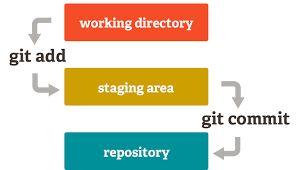
Working Directory
This is the folder where you actually:
write code
edit files
delete files
Nothing is saved in Git history yet.
Staging Area
The staging area is a preparation zone.
You tell Git:
“These are the changes I want to save next.”
It gives you control instead of saving everything blindly.
Commit
A commit is a snapshot of your code at a moment in time.
Each commit:
has an ID
has a message
represents a stable point
Think of commits as checkpoints in a game.
Branch
A branch is a separate line of work.
You can:
try new features
fix bugs
experiment freely
All without disturbing the main code.
HEAD
HEAD simply points to:
“Where you are right now in the project history.”
It’s Git’s way of saying:
“This is the current version you’re working on.”
Common Git Commands (Beginner-Friendly)
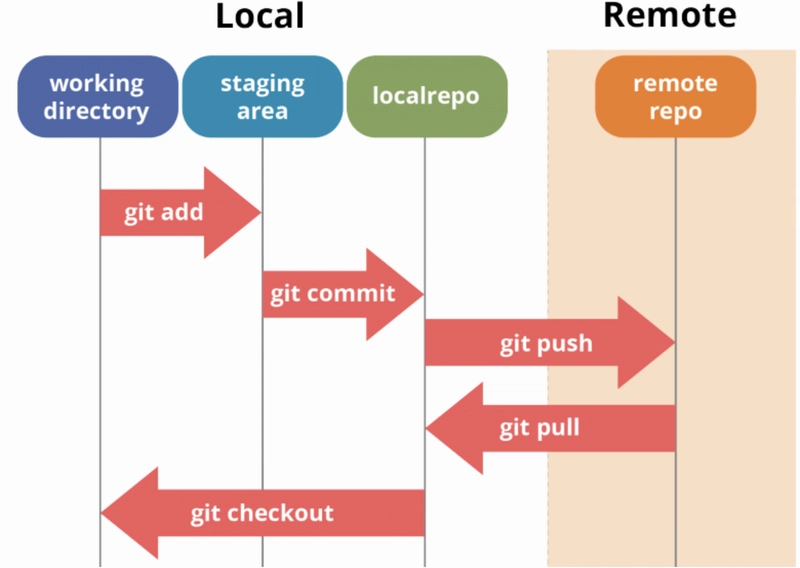
Let’s walk through Git commands from scratch, like a real developer.
git init
git init
This command:
- turns a normal folder into a Git repository
Git now starts tracking this project.
git status
git status
Shows:
changed files
staged files
current state of the repo
This is the most-used Git command.
git add
    git add <filename> (add specific file)
    or
    git add . (add entire file inside folder or sub-folder)
Moves changes from:
- working directory → staging area
You’re telling Git:
“I want to include this in my next commit.”
git commit
git commit -m "Initial commit"
This command:
saves staged changes permanently
creates a new snapshot
Always write clear commit messages.
git log
git log
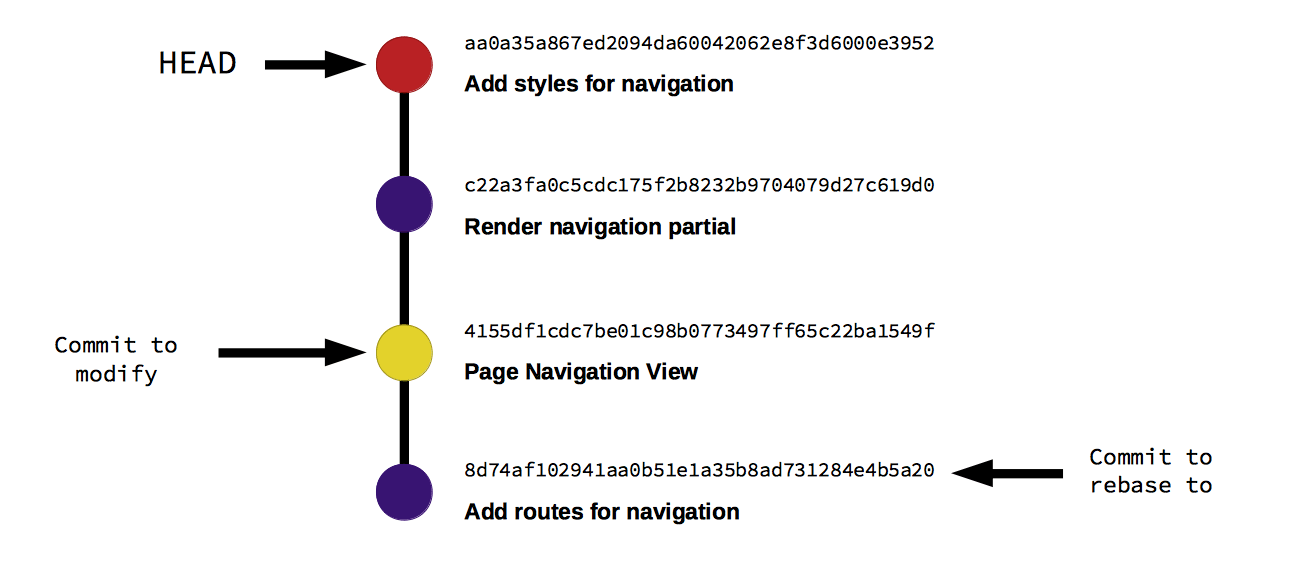
Shows:
past commits
who made them
when they were made
Git history becomes your project’s story.
A Basic Developer Workflow Using Git
Here’s how Git is usually used in real life:
1️⃣ Create or edit files
2️⃣ Check changes using
git status3️⃣ Stage files using
git add4️⃣ Save snapshot using
git commit5️⃣ Review history using
git log→ Repeat.
→ That’s it.
→ No magic. Just discipline.
Final Thoughts
Git is not about memorizing commands.
It’s about:
safety
confidence
clarity
Once Git clicks, you stop fearing mistakes — because nothing is truly lost.
Take it slow. Practice daily. Git will become your best friend.
Comments
Join the discussionNo comments yet. Be the first to comment.


